Exposure Settings allow you to control which items you configure or expose when you are adding a new location, reorganizing a location or reviewing a location’s settings.
When you set up your new location, select a location you want to duplicate and quickly add or delete settings instead of updating each item one at a time. This makes onboarding a new center especially fast, since you can expose everything it needs in one place rather than working through every item individually.
Review this checklist before you get started.
If you are adding a new location, that location must first be created.

Learn more about Managing Multiple Locations.
Exposure Wizard
Add a New Location
Go to Procare Home > Supervisor Utilities > Exposure Settings or
Procare Home > Configuration > System > Locations & Users > Regions & Schools > Select a School > Click Exposure Settings.
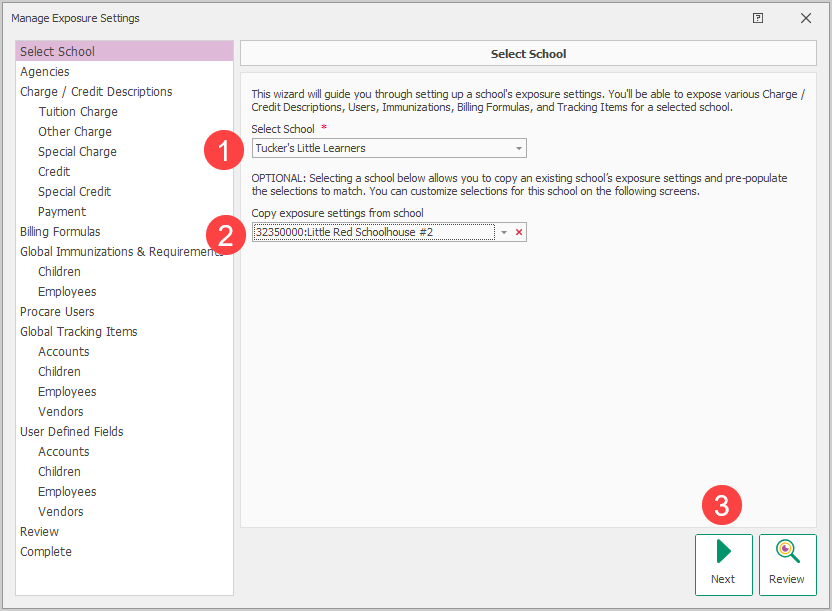
Select the new location or the location you want to edit.
Select the location of the exposure settings you want to duplicate.
Click Next.
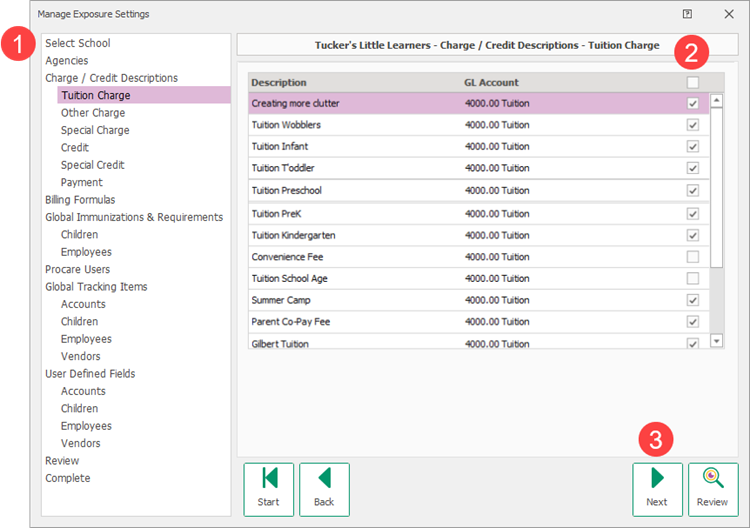
You will continue through each exposure setting.
Select all or select the individual item.
Click Next.
Continue until all exposure settings have been selected.
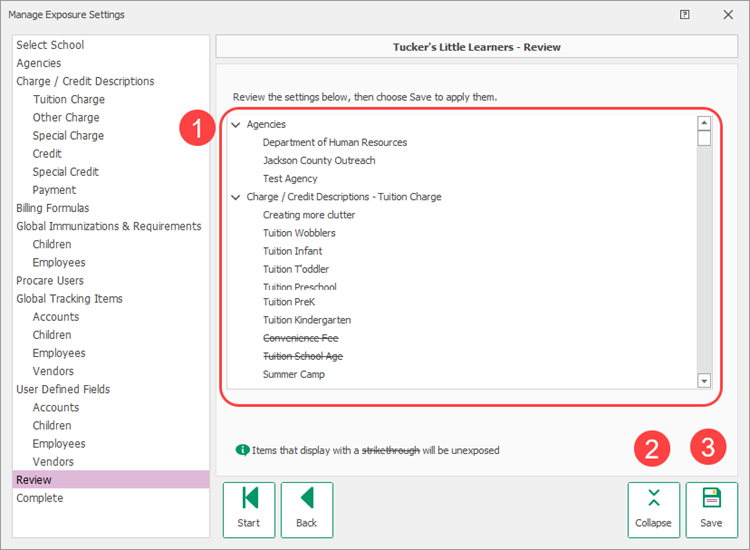
Review the settings you selected.
Click
 to collapse or expand the list or use the Collapse button.
Click Save to save and exit.
Review
At any time you can come back and click the Review button to see the exposed items applied to the selected location.
Edit an Existing Location
Go to Procare Home > Supervisor Utilities > Exposure Settings
Select the location you want to edit.
Continue through each exposure setting.
Edit the items.
Click Next.
Continue until all exposure settings have been selected.
Click Save.
Click Yes to continue or No to cancel.
Apply to All Regions or Individually
Apply Exposure elements to All Regions or Individually. With this option you select the Exposure element and decide whether to apply it to a specific region or apply it individual to a specific location.
Go to Procare Home > Configuration > System
Select the System Configuration option. For our example, we are using Accounting Management > Family Accounting > double-click Charge/Credit Descriptions.
Select a Charge/Credit Description.
Select Expose.
Select Expose to All Regions.
Click Yes to continue, No to Cancel.
Click OK.
Click Exit.
Set Individual Exposure Settings.
Select the School(s).
Click Save.
Click Exit.
System Configuration Option | Exposure Options |
|---|---|
Account Management | Family Accounting
|
Data Management | Tracking Items & User Defined Fields
|
Immunizations & Requirements
|