The Ledger Card is where the history of charges, credits, payments with the balance for each family and/or agency is recorded. Often you’ll use special tools like Automated Billing, the Late Payment Calculator or Quick Ledger Posting to record information on many ledger cards at once. However, it’s good to know how to make individual entries as needed.
Before You Begin
Confirm your ledger posting date ranges are set correctly to allow posting to prior or future periods as needed in the Family Accounting section of Region and School Configuration.
Getting There
Look Up the account and click the Ledger icon on the account toolbar.
Account Toolbar: Family Ledger Card
Beginning Balances
If you are just getting started with Ledger Cards, you’ll want to begin by posting beginning balances for each family. See: How to Post Beginning Balances.
Post an Individual Entry
At the Account Ledger screen, enter a transaction:
Select a Description like “Tuition Toddlers”, “Family Discount” or “Pmt by Check” as appropriate.
Today’s Date will be automatically entered. Change the date if needed.
Type a Comment (optional), such as the check number, when a payment is made.
Applies To: The option is available to apply this amount to an individual child or the account.
Note
When an Automated Billing Procedure runs, the child’s name is automatically entered in the Applies To column of each transaction it creates.
Confirm the Amount or type it in as needed.
Note: The Amount will be entered automatically if the selected Description has a Standard Amount. When recording a payment, the full amount due appears by default. In either case, you may type over the amount as needed.To continue adding additional items, tap Enter (on your keyboard) until a new, blank line appears.
Click Post & Exit.
Void an Entry
To void an item at the Account Ledger screen:
Locate the entry.
Click More Options
 , select Void.
Select Void at the bottom of the window.
Select a Void Date and enter the required Void Comment.
Click Void.
At the Account Ledger window, click Post & Exit.
See Who Voided an Item (Including Date and Comment
Go to the Ledger Card.
Locate the line, click More Options
.Select View Details.
Change an Entry
The User Group to which you are assigned determines whether you can make changes to a Ledger Card. In most cases it’s best to void items that were posted incorrectly rather than just changing them.
At the Account Ledger screen click the field you want to edit (Date, Description, Comment or Amount) and make your change.
Click Post & Exit.
Change the Void Date of an Item Previously Voided
Go to the Ledger Card.
Locate the line, click More Options
.Select Edit Void
Revise the void date or comment as needed.
Search for a Ledger Comment (Check Number)
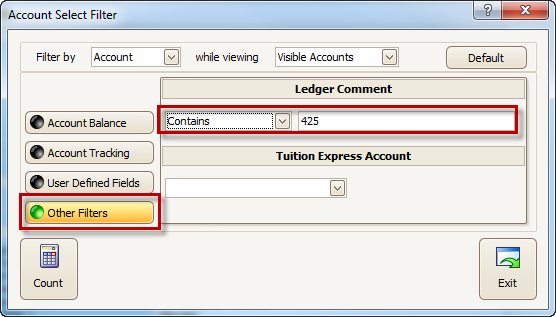
You may use the Account Filter to select only families that have a particular item (like a check number) in the Comment box on their Ledger Card.
Click the Filter icon on the account list (looks like a funnel or coffee filter).
Choose to filter by Account.
Choose Other Filters.
In the Ledger Comment box, select an option from the drop-down list, such as “Contains”
Type the text for which you are looking, such as the check number.

FAQ - Account Ledger Card
Can a family download their own copy of the account ledger card?
Yes. Families can download their own statements or review their account ledger card information through MyProcare.
Run these available reports:
Customer Statement (full transaction history)
Customer Charge Credit Summary (charges and payments by category)
Print or save for their records.